
Video Guide

How to Create an Invoice, Add Customers and Add Products in Invoxa (FBR Invoicing Video Guide)

This video shows how to create your first FBR-ready sales invoice in Invoxa. You'll learn how to add customers (buyers), add products, and create and submit an invoice in a few minutes. Everything is shown on screen — from Master Data to Validate with FBR and Submit to FBR — so you can follow along in your own account instead of reading a manual.

Updated 5-8 min read Invoxa Team

Invoxa tutorial video

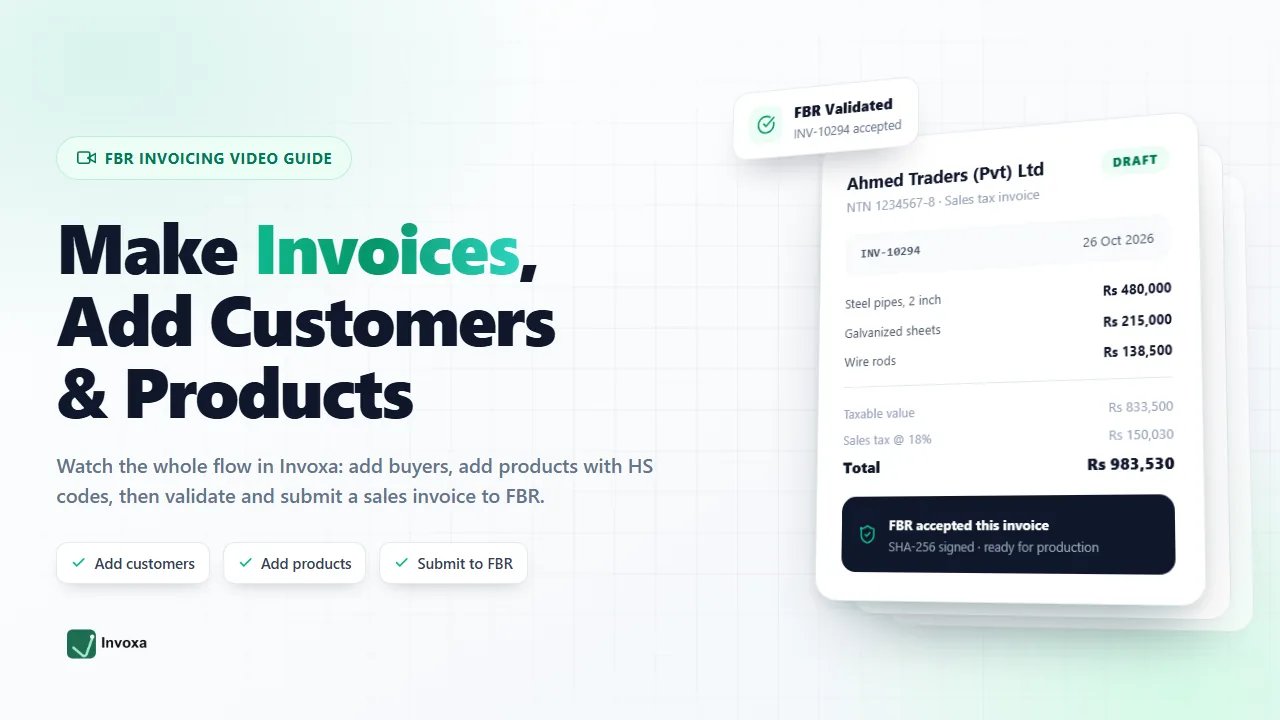
Video thumbnail: Invoxa invoice screen with the heading Make Invoices, Add Customers and Products, marked as an FBR invoicing video guide

Video not loading? Open it directly on Google Drive

What you'll learn

Pick a chapter to jump to that part of the written guide, or watch the video from the start.

Before you start

  • You need an active Invoxa account with a connected business. — See how to get an Invoxa account.
  • Have your business details handy: your NTN or CNIC, STRN, province and address, because FBR asks for them on every sales invoice.
  • It also helps to keep a list of what you sell, with the HS code and unit of measure (UoM) for each item.

Add customers (buyers) you sell to

Open Master Data > Customers and choose Add. A customer is saved once and reused on every invoice, so you never type the same buyer again.

Invoxa keeps the buyer data exactly the way FBR needs it. Registered buyers must have an NTN; for retail or unregistered buyers you choose Unregistered and the NTN field becomes optional.

What you fill in

  • Business Name
  • NTN / CNIC
  • Registration Type (Registered or Unregistered)
  • STRN
  • Province
  • Address
  • Contact Person and Email

Tip: double-check the NTN or CNIC before you save — it travels onto every invoice for that buyer.

Add products with HS code and UoM

Open Master Data > Products and choose Add. Each product is reusable too, and this is where the FBR-facing tax data lives, so it is worth getting right once.

Enter the item code and name, then the HS code and unit of measure (UoM) for the item. Invoxa offers the FBR HS code and UoM values while you type, so pick from the list instead of guessing. Set your sale price (and purchase price if you track it) and the item is ready for invoices.

What you fill in

  • Item Code and Item Name
  • Item Type
  • HS Code
  • UoM (unit of measure)
  • Sale Price and Purchase Price

Tip: if a line is tax exempt, choose the exempt option rather than typing 0 — FBR expects the marker, not a zero rate.

Create an invoice and submit it to FBR

Go to Invoices > Create Invoice. In Invoice Details pick the invoice date, the invoice type (Sale invoice, Debit note or Credit note) and then select the customer you saved — the buyer name, NTN, province and address fill in automatically.

In Item Details add one line per product: quantity, unit price and the applicable sales tax rate or sale type. The Items table shows the subtotal, tax and grand total as you go, and Preview invoice shows the document your buyer will receive.

Save as draft if anything is unsure. Then run Validate with FBR — Invoxa checks the payload against FBR rules — and Submit to FBR. When FBR accepts it, the invoice gets an FBR invoice number and you can Download PDF from Invoice History or Submitted Invoices.

What you fill in

  • Invoice Details: date, invoice type, customer
  • Item Details: product, quantity, unit price, tax rate
  • Items table: subtotal, sales tax, grand total
  • Save as draft, Validate with FBR, Submit to FBR
  • Download PDF once FBR accepts the invoice

Tips that save a rejection

  • Check the buyer's NTN or CNIC and each HS code before you submit — they are the two fields FBR rejects most often.
  • Use Save as draft when you are unsure: a draft is editable and nothing goes to FBR until you submit it.
  • Submit close to the time of sale. FBR time-stamps the invoice when it accepts it, not when you typed it.
Video summary / transcript
  1. 00:00 — Introduction: what an FBR-ready sales invoice needs in Pakistan, and where customers, products and invoices live in the Invoxa workspace.
  2. 02:15 — Adding customers: Master Data > Customers, then Business Name, NTN / CNIC, Registration Type (Registered or Unregistered), STRN, Province and Address. Saved once, reused on every invoice.
  3. 04:30 — Adding products: Master Data > Products, with Item Code, Item Name, HS Code, UoM and Sale Price, choosing the FBR HS code and UoM values Invoxa suggests.
  4. 06:00 — Creating the invoice: Invoices > Create Invoice, Invoice Details (date, invoice type, customer), Item Details (quantity, unit price, tax rate or sale type) and the Items table totals.
  5. 07:00 — Validating and submitting: Save as draft, Validate with FBR, Submit to FBR, then read the FBR invoice number and Download PDF.
  6. Throughout: the two checks that prevent most rejections — the buyer's NTN or CNIC, and the correct HS code and UoM on every line.

A written summary of what the video covers, for reading and for search engines.

Frequently asked questions

Quick answers about creating FBR invoices in Invoxa.

Do I need technical knowledge to use Invoxa?

No. If you can fill a form, you can create an FBR invoice. Invoxa handles the FBR formatting, signing and confirmation behind the scenes, and tells you in plain words what to fix if something is rejected.

How do I add a customer (buyer) in Invoxa?

Open Master Data > Customers and choose Add. Fill the business name, NTN or CNIC, registration type, province and address, then save. The customer is reusable, so on later invoices you just pick the name and the buyer details fill in themselves.

How do I add products and HS codes?

Open Master Data > Products and choose Add. Enter the item code, name, HS code, unit of measure and price. Invoxa suggests the FBR HS code and UoM values as you type, so you select the right one instead of looking it up.

How long does it take to create and submit an invoice to FBR?

A familiar invoice takes a minute or two: pick the customer, add your lines, validate and submit. Submission itself is a call to FBR and the accepted invoice number normally comes back within seconds.

Can I save an invoice as a draft before submitting?

Yes. Use Save as draft and the invoice stays in Drafts, fully editable, and nothing is sent to FBR. Validate with FBR first if you want to be sure the numbers and codes are correct before you submit.

How do I get an Invoxa account?

Message us on WhatsApp with your NTN or CNIC, your FBR (IRIS) password and the contact person who will receive the OTP. We create your account, usually within 24 hours and never more than a day or two. The full process is on the get started page.

Need your Invoxa account?

We set it up for you — message us and you can be invoicing on FBR within a day or two.